This post looks at how to find the details of batch ingestion errors in Adobe Experience Platform (AEP).
Unlike the AA method of each server call hit getting sent directly into the database, AEP/CJA use a batch system which collects the incoming Web SDK messages and then passes them as a batch into the Data Set. There is a simple reporting view which tells you how many batches have been imported, how many records are included in those batches, and how many batches had an error.
The default error messages in Adobe Experience Platform Data Set view aren’t particularly useful, so how do you get to the bottom of what is actually causing the batch to fail?
When using AEP datasets to collect data for CJA, it’s disheartening seeing schema errors start to appear in your ingestion.
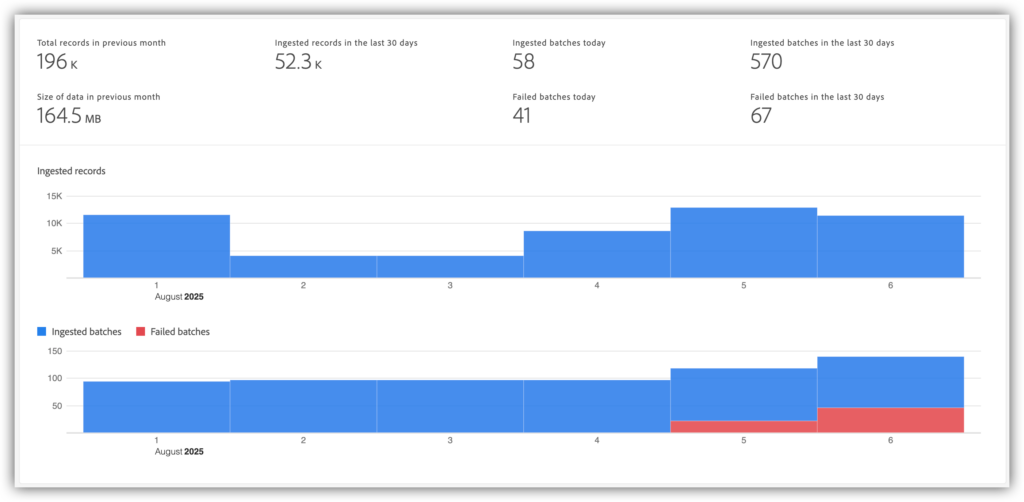
If you’ve used this screen in AEP, you’ll know the error messages aren’t very useful for finding which messages have caused the errors or even how many times the error occurred:
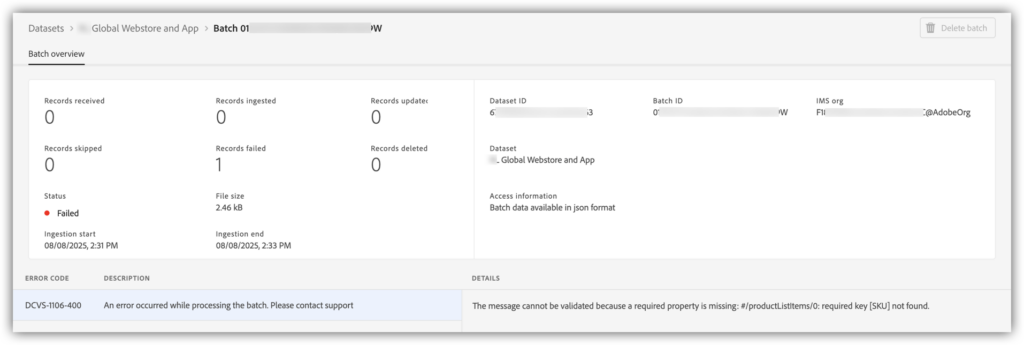
And if you’ve got a really buggy batch (or an early development build), then it might not even include all the errors in the batch.
Therefore, to get more information you need to use the AEP APIs to query the batches and find out the details of the errors.
Set up Postman
Postman is a wonderful (and free!) tool that enables you to develop against APIs. Download it from here. Then download the Adobe Collection from Github, which has lots of sample requests.
Make sure you have the IMS_ORG set as a variable at the top level project. You will need an Adobe account with API access, so if you haven’t got that head over to the developer console and set that up. There are instructions on Experience League.
In Postman, in the top node of the project set up your access token. You may need to get a new access token and / or refresh this each time you come back to this process.
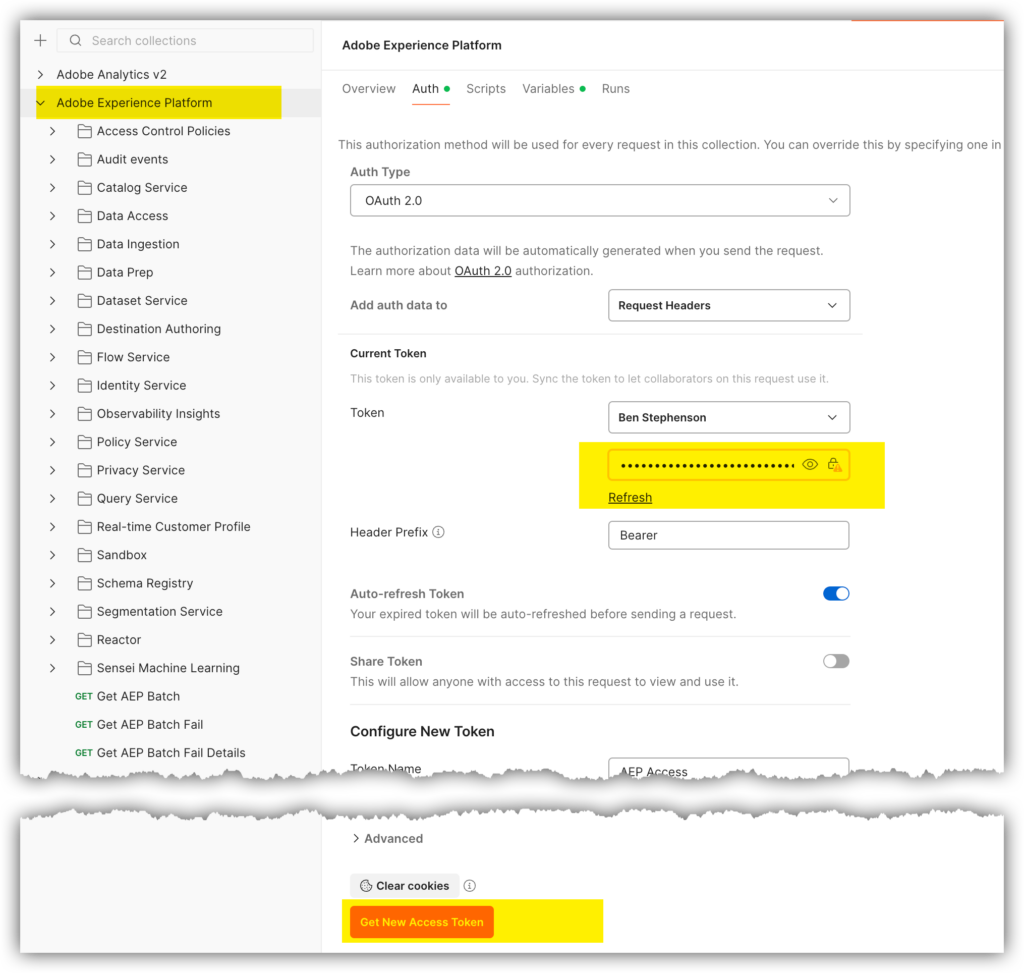
Set up a new HTTP request and save it underneath the Adobe Experience Platform node.
Under the Authorisation tab select “Inherit auth from parent” and under the Headers tab add the following:
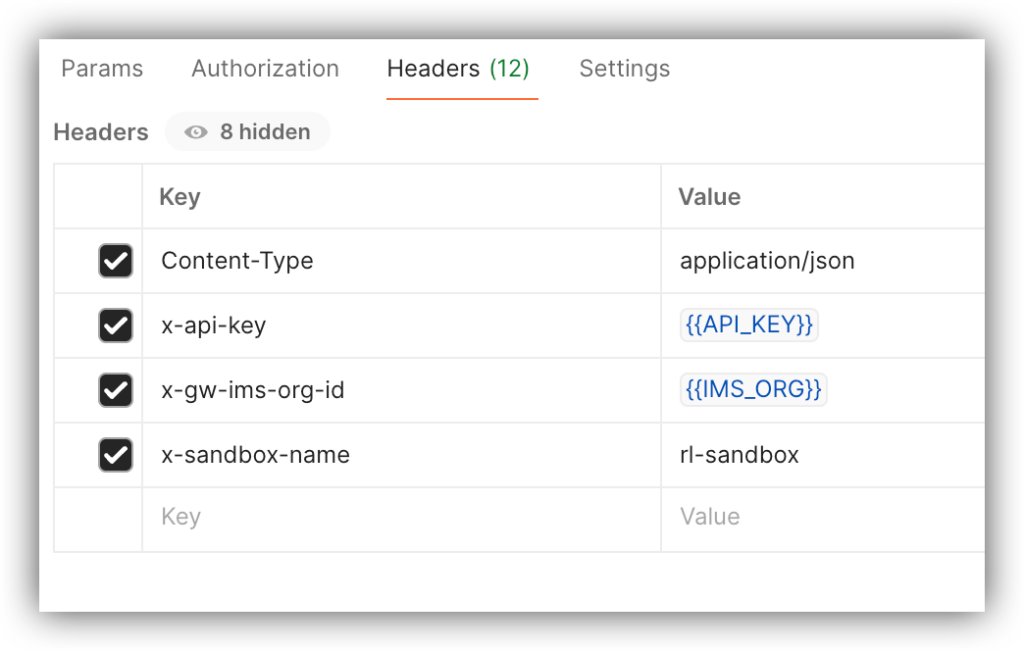
The IMS_ORG and API_KEY values link to project variables.
According to Adobe, the first call you need to make brings back the batch detail. The URL is:
https://platform.adobe.io/data/foundation/catalog/batches/[batchid]
This returns JSON output that looks like this: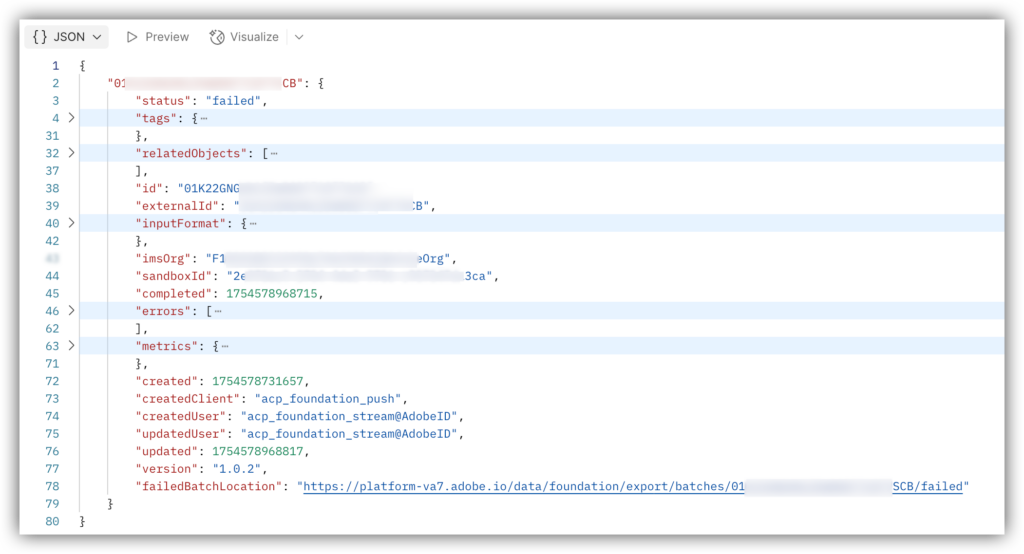
I have found that you don’t actually need to do this step though, if you know the batch failed.
You then take the URL on the failedBatchLocation property (line 78 above) and use that as the URL for a new API call. Set up the new http call the same way as the previous one, with the inherited authorisation token and the variables in the headers.
If you know the Batch ID (which you do because you used it in the previous step) then you can jump straight to this URL with the Batch ID in the middle:
https://platform-va7.adobe.io/data/foundation/export/batches/[batchid]/failed
The response from this second API is something like this:
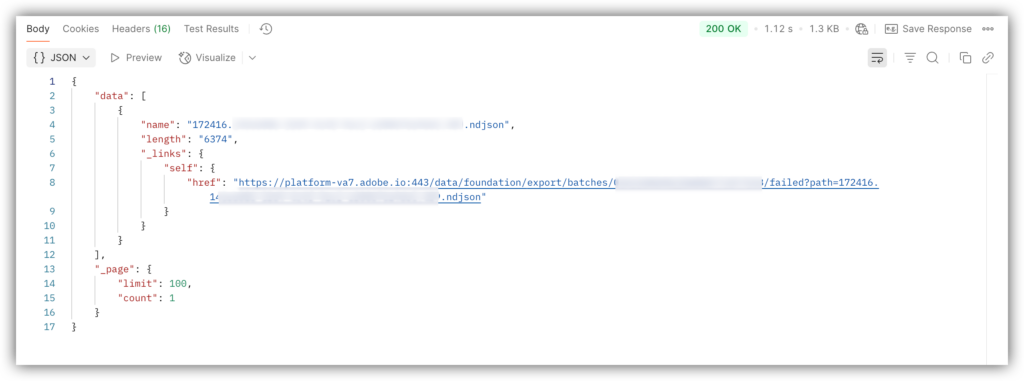
You then take the URL in the middle of this response and use that as the path for a third call. This will give you all the details of the batch, including the full XDM object that is passed in.
You can hopefully use the details in the XDM to identify where the call is coming from and which rules were used to build it, and then work out how to fix the error. You should be able to identify the page and event that caused the call and look at what is missing from the XDM object causing the error.
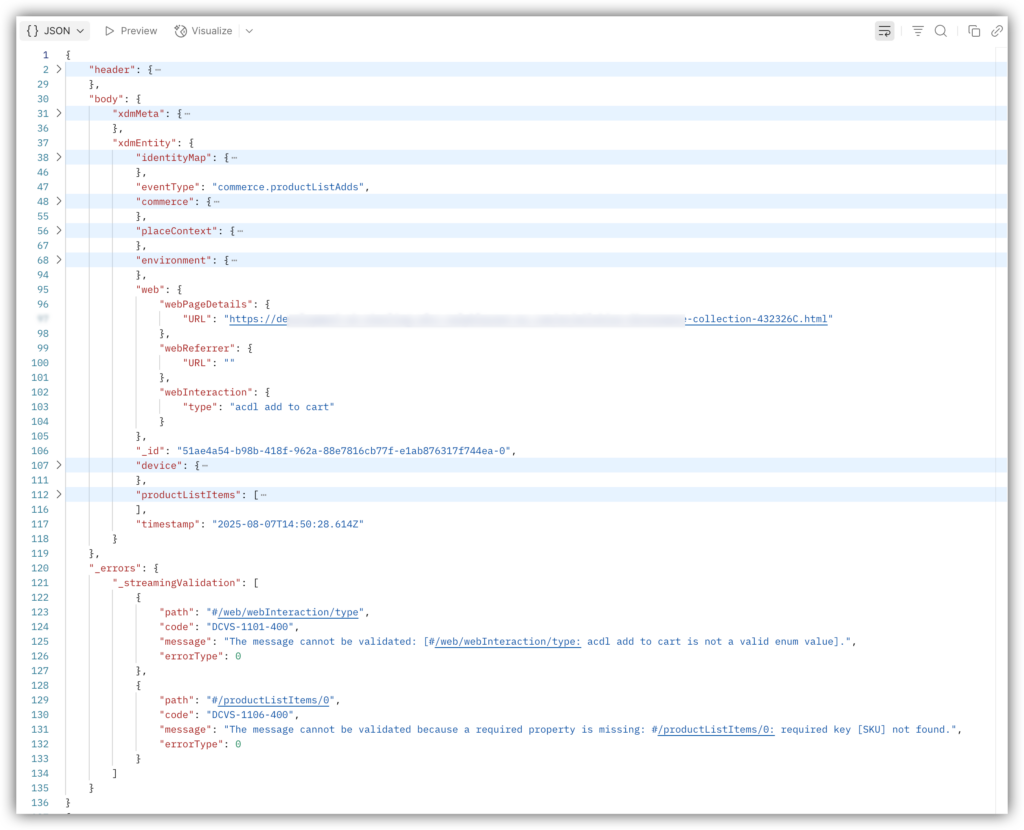
The trickiest part of the whole thing is working out the authentication token part to get access to the Adobe APIs, the actual querying is very simple. The most frustrating part is having to do two queries in two separate tabs in Postman.
Making This Process More Efficient
Opening up AEP and Postman and copy / pasting multiple IDs and URLs forwards and backwards between the windows can be very time consuming and frustrating. It doesn’t really give an easy overview of whether you have lots of different errors happening, or the same issue happening over and over, without a lot of pasting and remembering.
So we came up with a way of fetching all the batches and all the errors in one go.
We created an “AEP Error Batch Checker” Google Sheet. Google Sheets allow you to add script that makes calls out to Adobe API and then process the returned JSON into tables.
The Apps Script function behind the sheet connects to the API, and brings back all the failed batches for the given time period. Then it loops through those batches and calls the second API from above, bringing back the URL of the details. Then it loops through those URLs and makes the third call to bring back the error messages.
Selected parts of the error JSON are then inserted into a table.
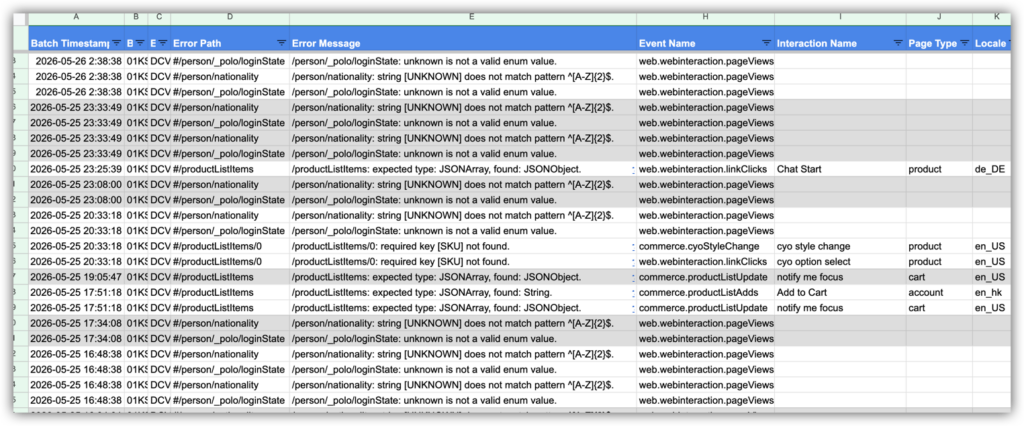
From looking at this table it is easy to see at a quick glance that most of the errors are the same issue (caused when the data layer suffers a failure) and then easy to spot the where there are genuine issues in the payloads.
The whole thing takes about a minute to run (returning about 30 batches) and has saved me hours of clicking and copying and pasting.
Summary
The tools available are helpful and give you all the information you need to debug your implementation, but the key details are hidden behind some serious repetitive work. However, with an understanding of the APIs that are available, and a bit of knowledge of AppScript in Google Docs, you can easily create a tool that makes it much easier.
Get in touch if you’d like more information on the scripts that power this, or you want help with your AEP / CJA implementation.